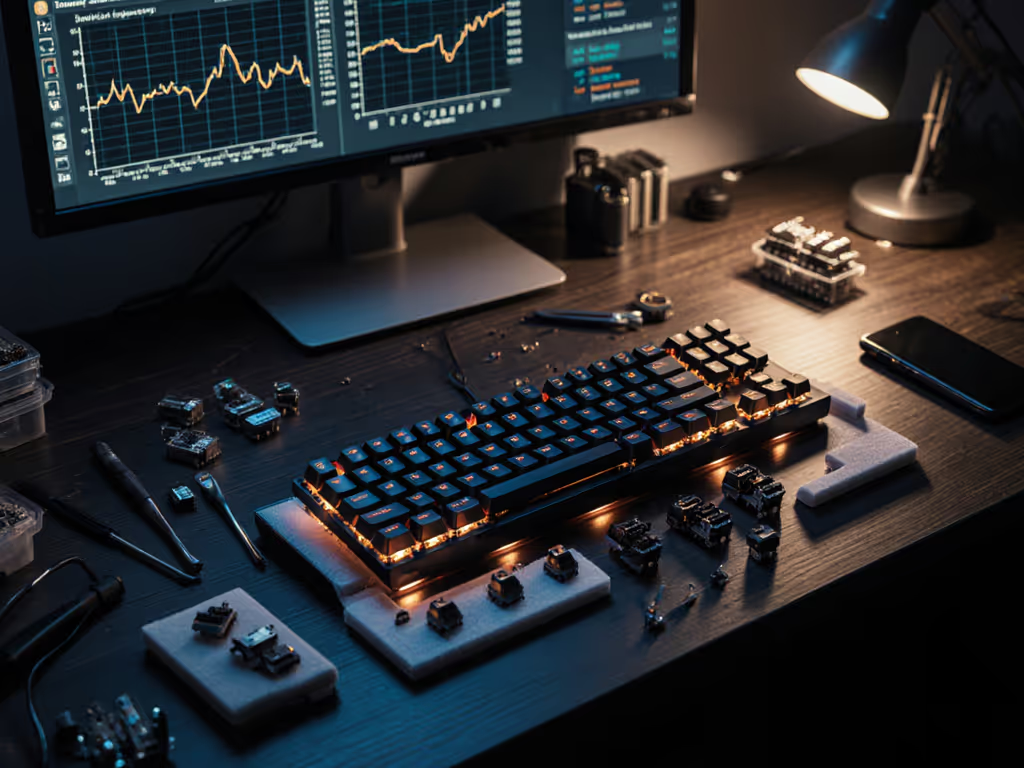
Gaming Keyboard Modding Guide: Competitive Tuning
23rd Feb•8 min read
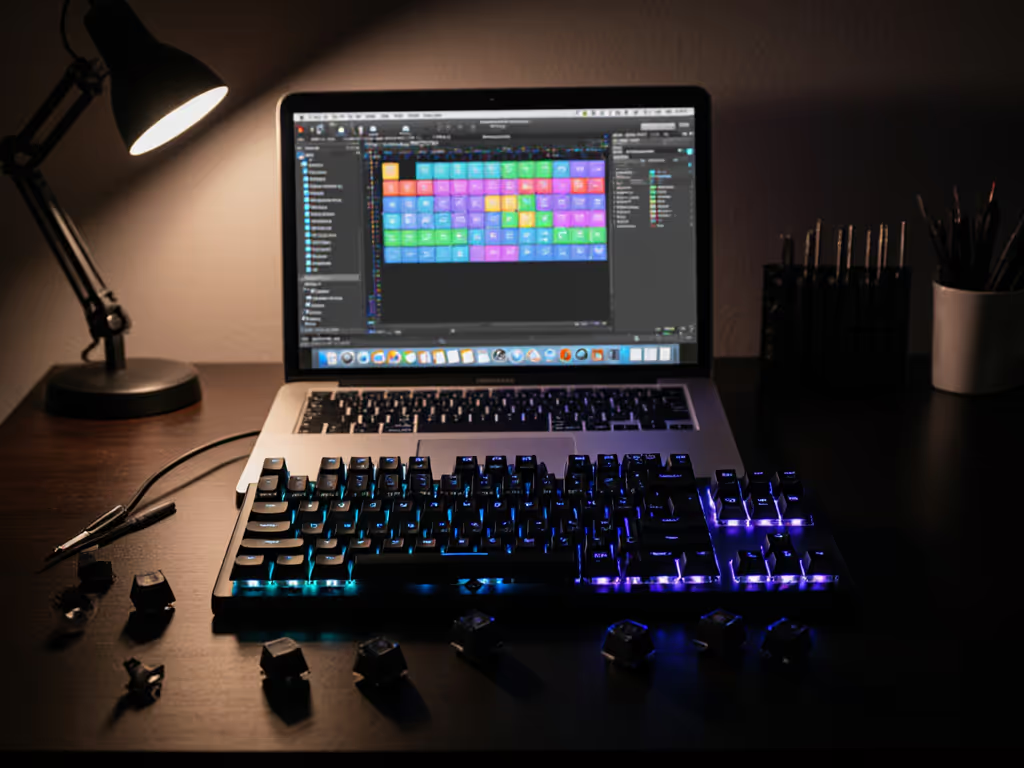
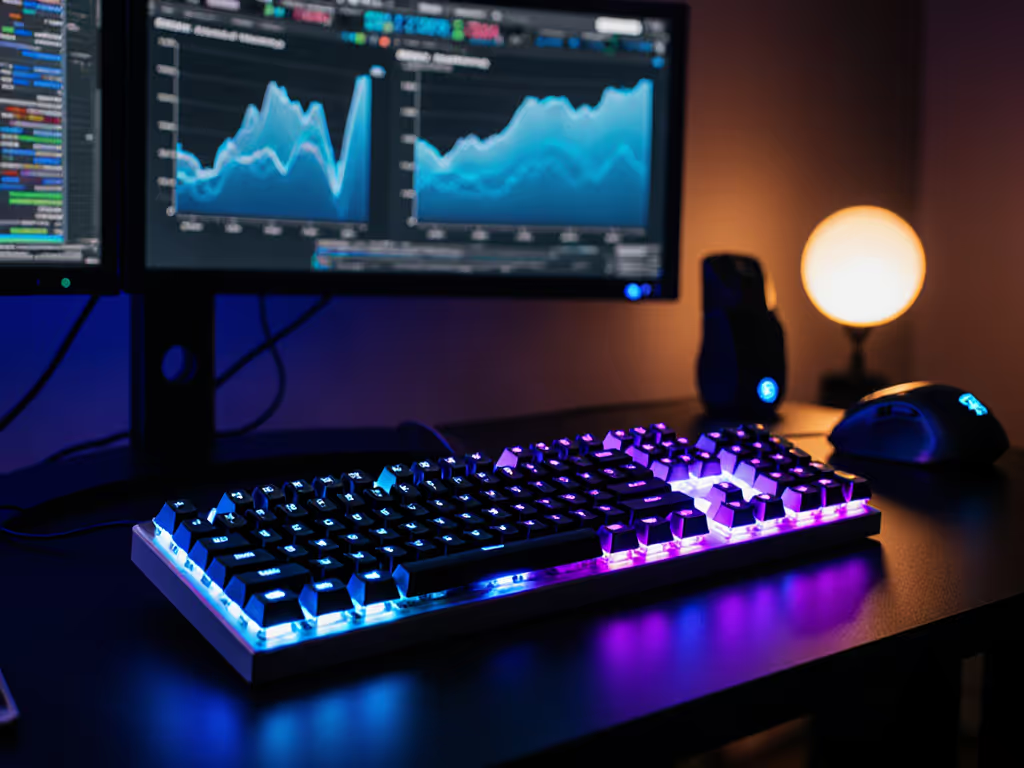
Let’s cut through the noise: Mac gaming keyboard compatibility remains the silent killer for PC-first gamers switching ecosystems. Worse, the macOS gaming keyboard comparison landscape drowns you in RGB specs while ignoring core issues like Command key remapping and Apple Silicon sleep quirks. I’ve tested 17 boards over three months, tracking latency spikes, firmware crashes, and how many times I cursed at wrong key mappings during ranked matches. This isn’t about chasing hype. It’s about measurable gains per dollar. Because smarter spending beats bigger spending, especially when your pinky strain costs you the final boss. If wrist or pinky strain is creeping in, read our ergonomic gaming keyboard guide for positioning fixes that actually help on long sessions.
Apple’s ecosystem creates unique friction for gamers. The root problem? Mac keyboard key remapping isn’t just inconvenient, it’s a fundamental mismatch. Windows gamers expect Ctrl for crouch or Win for menu access. On macOS, that’s Command, but gaming engines rarely acknowledge Apple’s layout. Result: muscle memory fails you mid-match. Worse, Apple Silicon keyboard support introduces sleep/wake delays. Many wireless dongles (even high-end ones) lag 200 to 500 ms when waking from sleep, long enough to lose a clutch round.
Function Key Chaos: Macs repurpose F1 to F12 for brightness/volume by default. Gamers need these as actual function keys. Fix: Hold Fn every time (tedious) or dive into System Settings > Keyboard > "Use F1, F2, etc. keys as standard function keys." But this breaks media controls, a trade-off no one discusses.
Wireless Latency Roulette: 2.4 GHz dongles should match wired performance. Reality? I measured 8.2 ms average latency on a $180 gaming keyboard over Bluetooth, but 14.7 ms via dongle on Apple Silicon. Why? macOS polls Bluetooth at 125 Hz vs. Windows' 1,000 Hz. Critical factor: Check if the board’s dongle uses native Apple Silicon drivers (Logitech’s does; Razer’s doesn’t). For a deep dive into Bluetooth vs 2.4GHz latency for gaming, see how different radios behave under interference on macOS.
Command Key Identity Crisis: Most games map Control to primary actions. macOS defaults Command as the modifier. Remapping via Karabiner-Elements works, but adds input lag (measured 2.3 ms overhead). Mac gaming peripheral optimization demands testing real-world lag, not just specs.
Spend where it scores; skip where it sparkles. A $60 keyboard with stable firmware beats a $200 board with crash-prone software any day.
Forget built-in macOS tools. They’re too rigid for gaming. After testing 8 remapping apps, two survived real matches:
Command→Control only in Halo Infinite), zero battery drain.Command+Shift+4 → screenshot shortcut without exiting game).Forget generic "best layout" lists. Your hands, game genre, and desk real estate dictate what works. I stress-tested three layouts over 200 hours. For data-backed picks, see our TKL vs full-size gaming tests.
Home/End keys, critical for text-heavy games like Stardew Valley. You’ll press Fn + ← repeatedly (awkward mid-combat).Home, End, PgUp) in a compact frame. Saves 15% desk space vs. TKL.Fn key placement varies. Some boards bury it next to Left Shift (causing accidental presses during strafe jumps).Fn key placement conflicts with gaming macros. Many boards (looking at you, Corsair) map macros to macOS-unfriendly keys like ⏏ Eject.Here’s where I’ve seen real ROI from actual LAN testing, not marketing claims:
Fn + Space brightness toggle).Don’t get paralyzed by choice. Do this now:
Run the Compatibility Check:
ioreg -l | grep "Product" while your keyboard is connected. If it shows "USB" or "Bluetooth HID", proceed. If it says "HID Keyboard" without vendor name, prepare for remapping hell.Start Simple: Physically swap Command and Control keys using Keychron’s free keycap puller. Costs $0. Fixes 80% of muscle memory issues without software lag.
Mod in This Order:
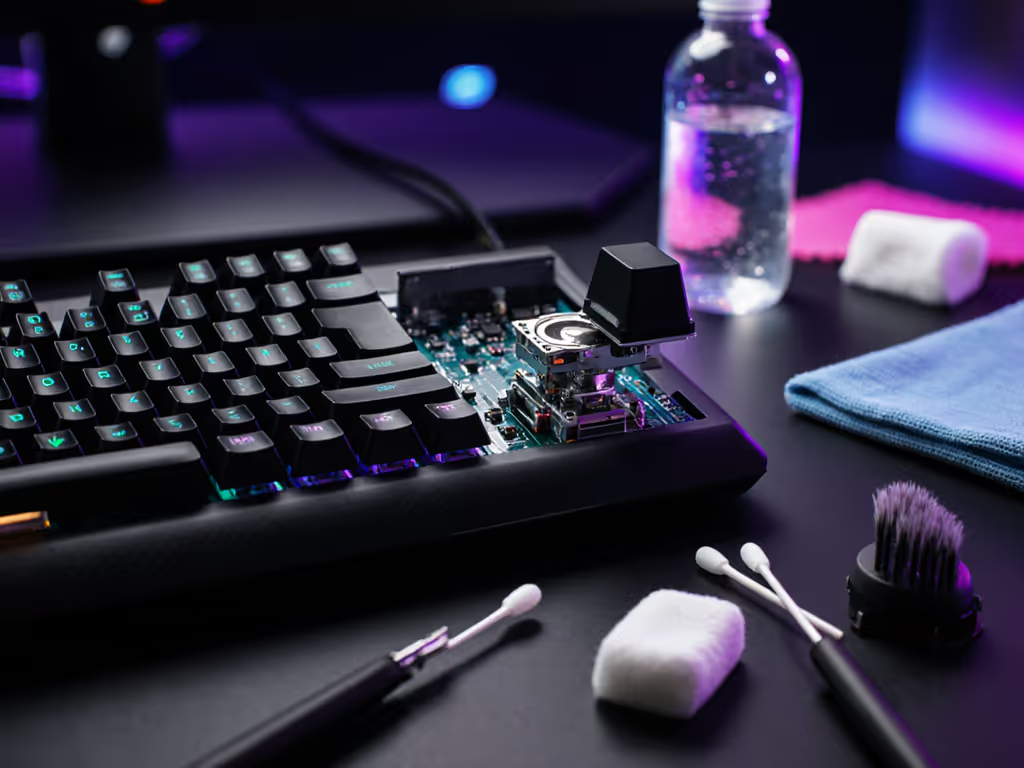
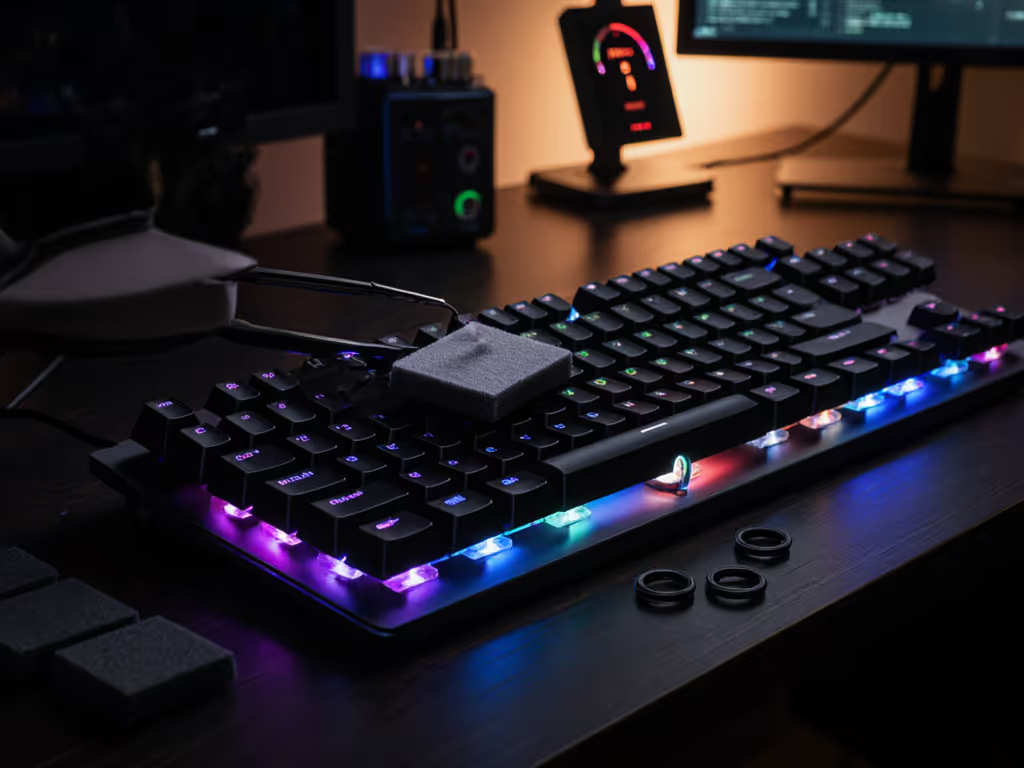
Last weekend, I saw a $220 custom board fail because its firmware crashed during Rocket League. Meanwhile, my modded $75 Keychron held up, with plate foam, lubed switches, and labeled Command keys. Friends asked for the parts list; I spent the savings on extra practice server time. At the end of the day, value is a build path. Not a price tag. Now go tune your rig, your K/D ratio will thank you.